Check applicable product, region and currency conditions on LootBar.
Tiles Survive discount top-up guide, self top-up method, account requirements, 2FA, Google Play Games not supported, actual payment steps, coupon usarge
Guide
Tiles Survive Discount Top-Up Guide
This page first explains what you should check before using self top-up for Tiles Survive,
including direct Google or Facebook account login, 2FA, Google Play Games login not supported,
the actual payment flow, and how to apply a coupon.
Direct Google / Facebook login required2FA requiredGoogle Play Games login not supportedStep-by-step self top-up guide
If you confirm these two points first, you can avoid most login failures or interruptions during self top-up.
Important:
Your personal information and account security must be managed by you directly. Before paying, make sure your login method and security settings are correct.
1. Confirm that your account is directly linked
Your Tiles Survive account must be directly linked to a Google account or a Facebook account.
2. Confirm that 2FA is enabled
The linked Google or Facebook account must have 2FA enabled.
Supported account login methods
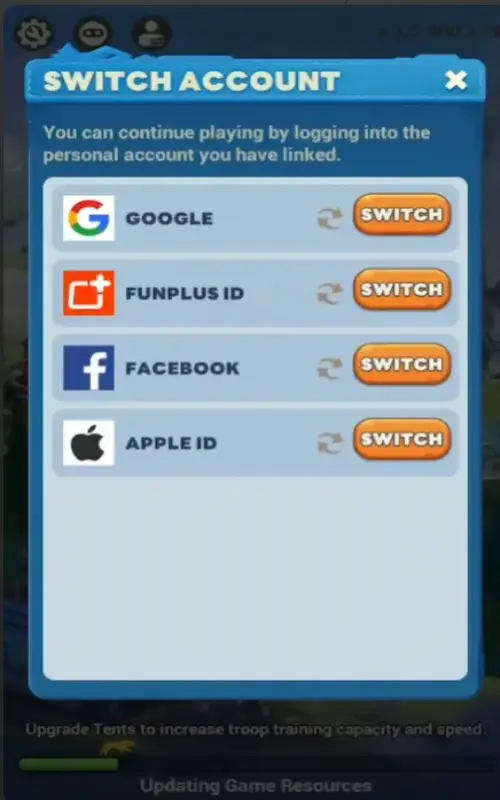
Self top-up currently supports only Tiles Survive accounts directly linked to a Google account or Facebook account.
Can I use an account linked through Google Play Games?
No. Accounts linked through Google Play Games are currently not supported for self top-up. At the moment, only direct Google account or Facebook account login is supported.
Quick check: If you normally log in directly with Google or Facebook and you see an extra verification step during login, you are almost ready.
Why is 2FA required?
Self top-up requires a security verification step during login. That is why the linked Google or Facebook account must have 2FA enabled for the process to work properly.
How to enable 2FA on Google
Go to your Google Account management page.
Open the Security menu.
Find 2-Step Verification.
Register your preferred method such as phone number or an authenticator app.
After setup, verify that it is working properly.
How to enable 2FA on Facebook
Open Settings & Privacy in Facebook.
Go to Password and Security.
Find the 2FA section.
Choose your preferred method such as text verification or an authenticator app.
After setup, verify that it is working properly.
How to check whether 2FA is enabled
The easiest way is to test it in an incognito window.
Try logging into your Google account or Facebook account there.
If you see an extra step such as phone verification, email verification, or authenticator approval,
then 2FA is enabled.
Check result: If you see phone verification, email verification, or an authenticator approval step, then 2FA is active.
Actual self top-up process
If your account type and 2FA are ready, the remaining flow is not difficult. Just follow the steps below.
Enter #s4qU in the search box before payment to apply an extra coupon.
Do not worry too much. If the conditions are correct, most users can complete self top-up by simply following the steps below.
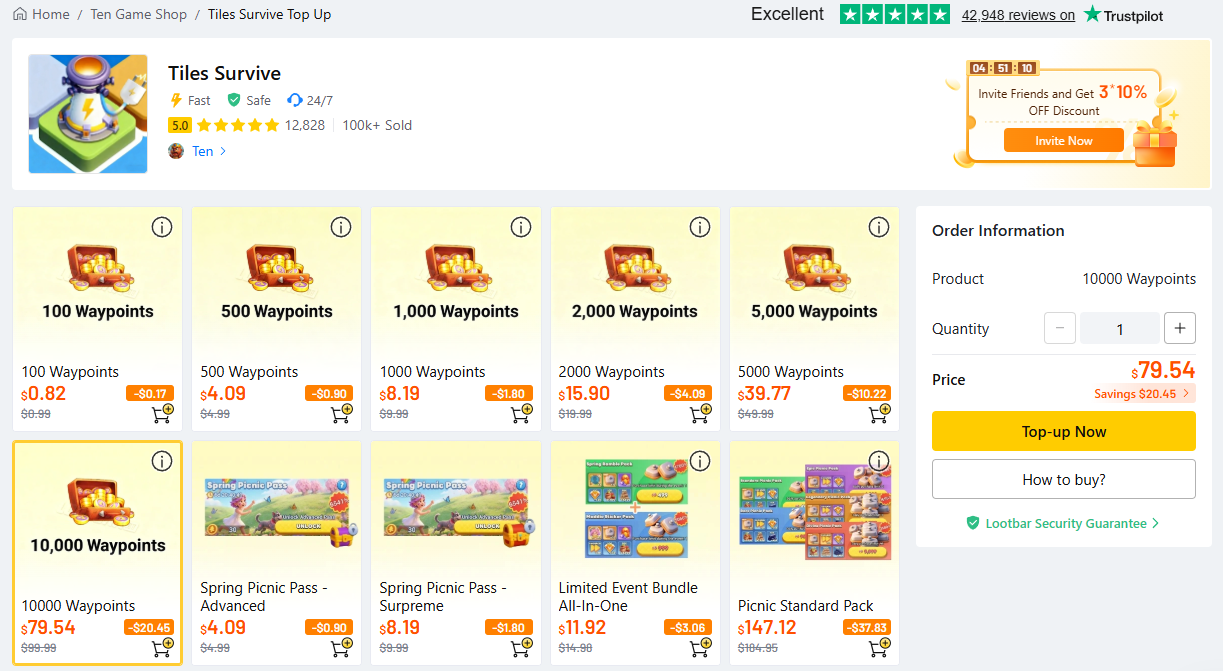
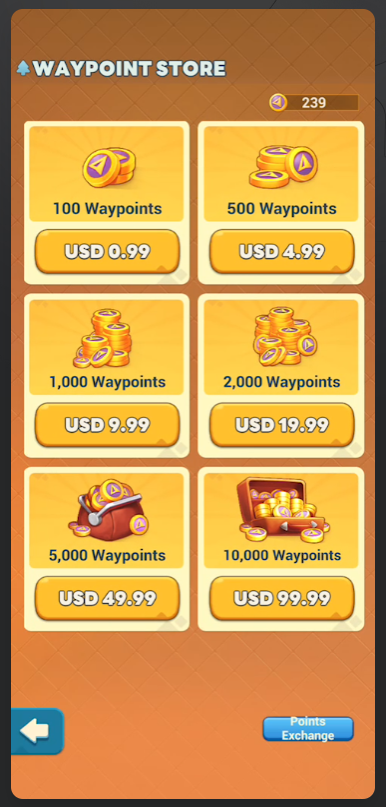
1. Choose a single package
Select the package you want, then click Top-up Now.
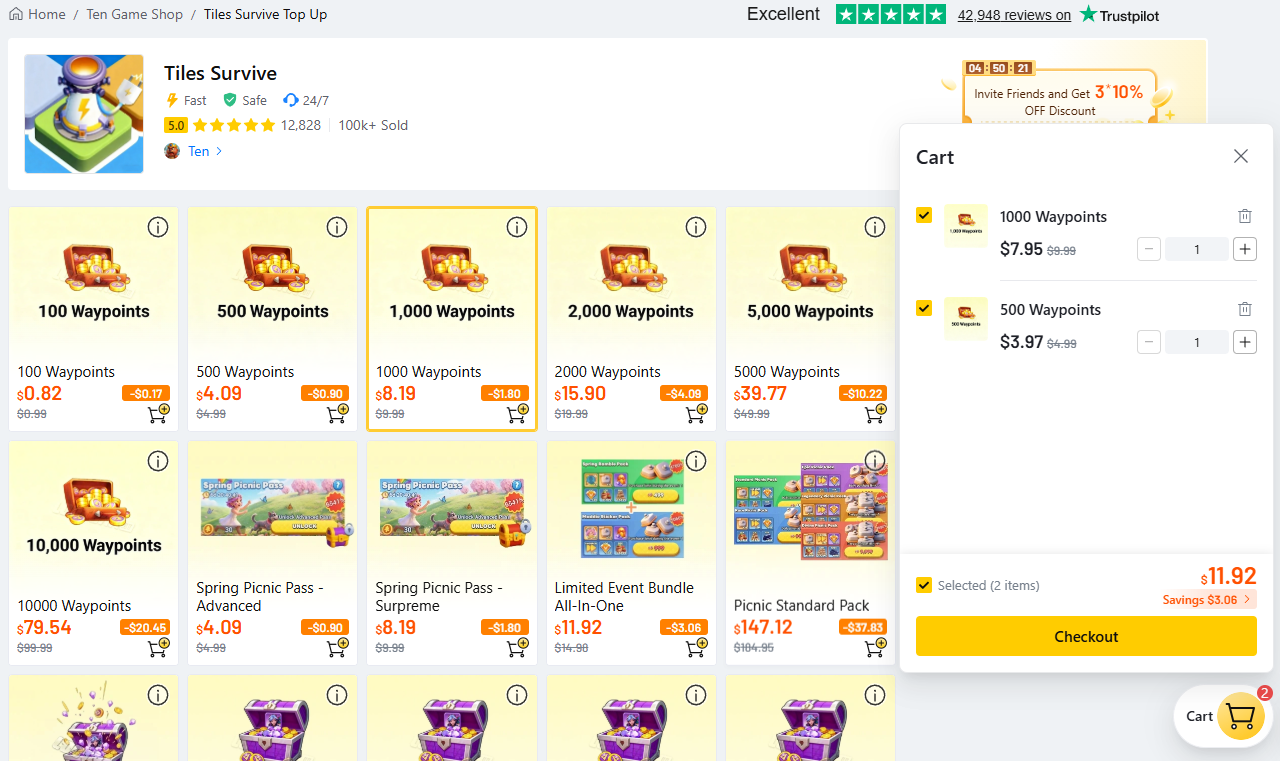
2. Add multiple packages
If you want to buy multiple items together, add the packages you want to the cart.
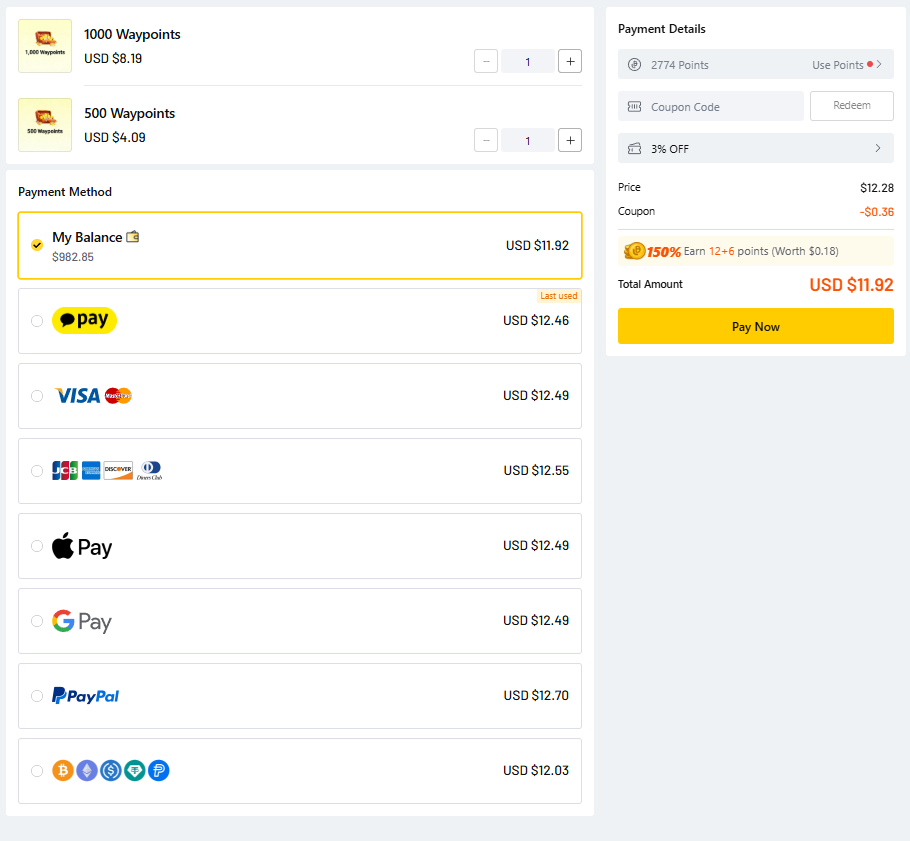
3. Proceed to payment
Choose your payment method, either card or PayPal, then click Pay Now. The left side is self top-up and the right side is agent-assisted top-up. Make sure you choose self top-up.
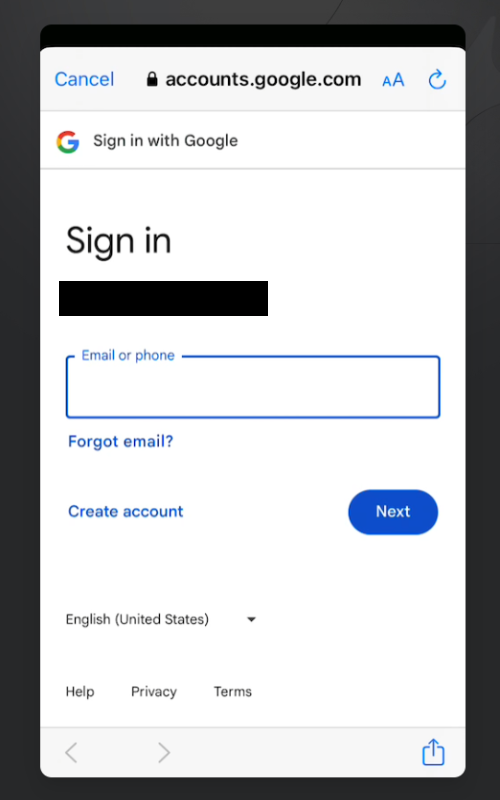
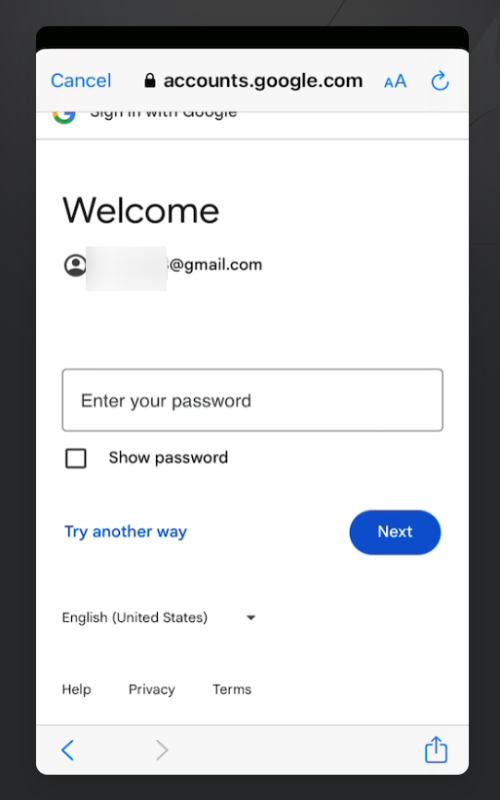
4. Log in with your linked account
Once you choose self top-up, a login screen will appear. For most users, Google login is the easiest option.
Enter your Google account.
Enter your password.
Tip: If you are unsure about your password, check it once in advance before starting the process.
5. Pay the total cart amount
Check the total amount in your cart, then complete the payment.
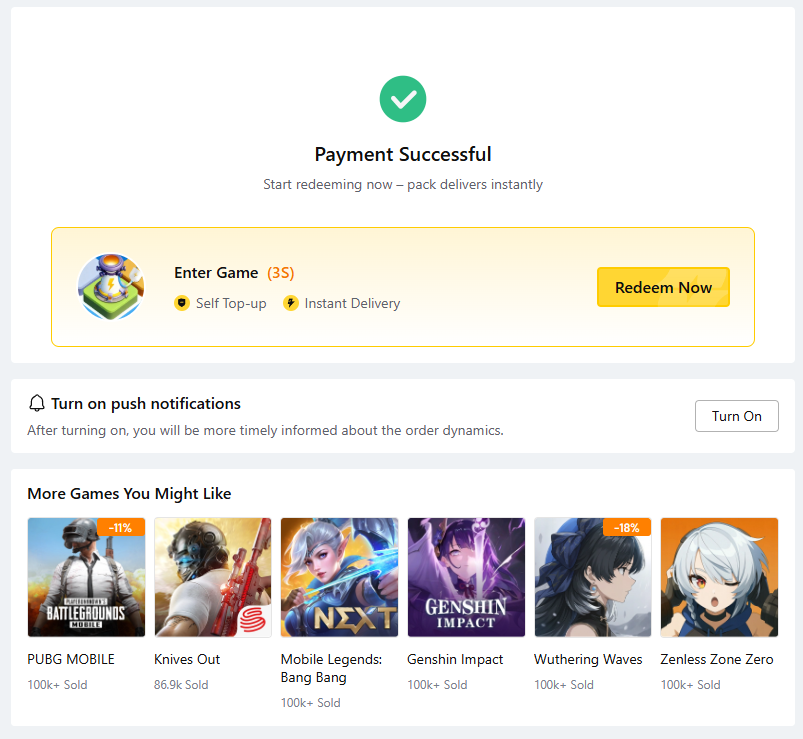
6. Confirm payment completion
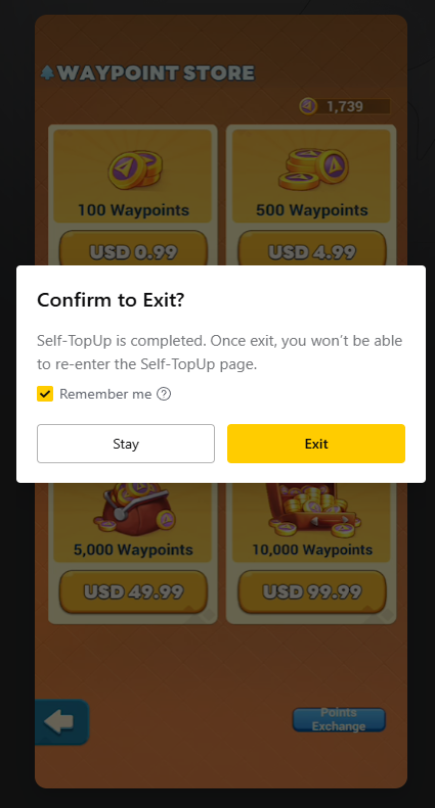
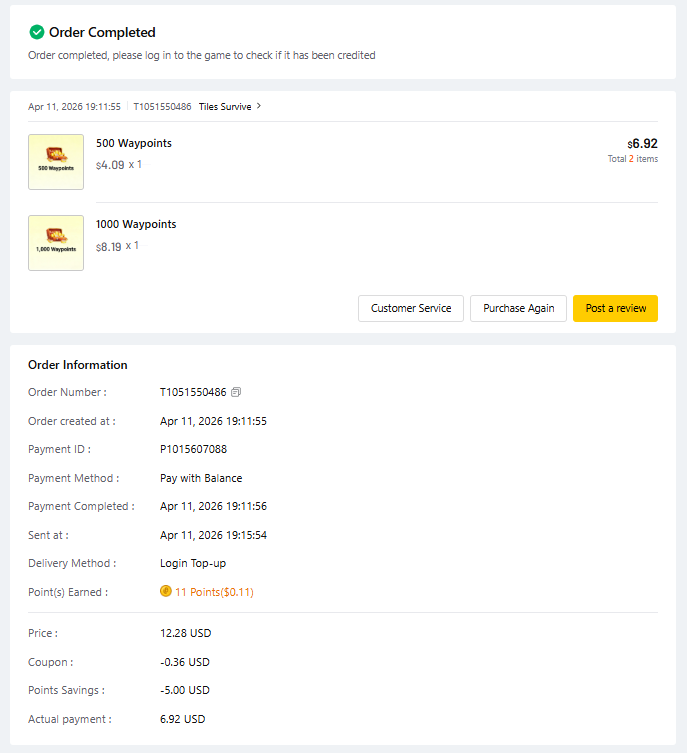
Once payment is completed, a completion screen will appear. If needed, click Got it. Your top-up is complete at this point.
7. Check the in-game delivery
Log into Tiles Survive and confirm that the purchased package has been delivered correctly.
Frequently Asked Questions
This section covers the issues that users most often get confused about before starting self top-up.
Why do so many users get stuck during self top-up?
In most cases, it is not a payment problem. The issue is usually that the account login method is unsupported or 2FA has not been enabled.
Can I use an account linked through Google Play Games?
No. At the moment, only accounts directly linked to a Google account or Facebook account are supported for self top-up.
How can I confirm that 2FA is enabled?
If you log in through an incognito window and see an extra verification step such as phone, email, or authenticator verification, then 2FA is enabled.
Where do I enter the coupon?
Enter #s4qU in the search box on the payment page before completing checkout.
What should I do if I get stuck in the middle?
Recheck your account login method and 2FA status first. If you are still unsure, contact support through the Discord help channel.
Support and additional info
If you have checked all conditions but still feel unsure, use the support links below.
If you get stuck during self top-up Contact support through Discord
If you tell them which step you got stuck on, they can guide you more quickly.
Check the latest discount top-up promotions and coupon info
You can find cumulative top-up benefits, monthly coupon schedules, and related notices on the page below.
If your Tiles Survive account is directly linked to Google or Facebook and 2FA is enabled,
you can continue with self top-up through the link below.
Before payment, do not forget to apply the #s4qU coupon as well.